
My Very Basic AI Thumbnail Workflow 😂
The exact input, screenshots, and beginner-friendly process I use to make Substack thumbnails.

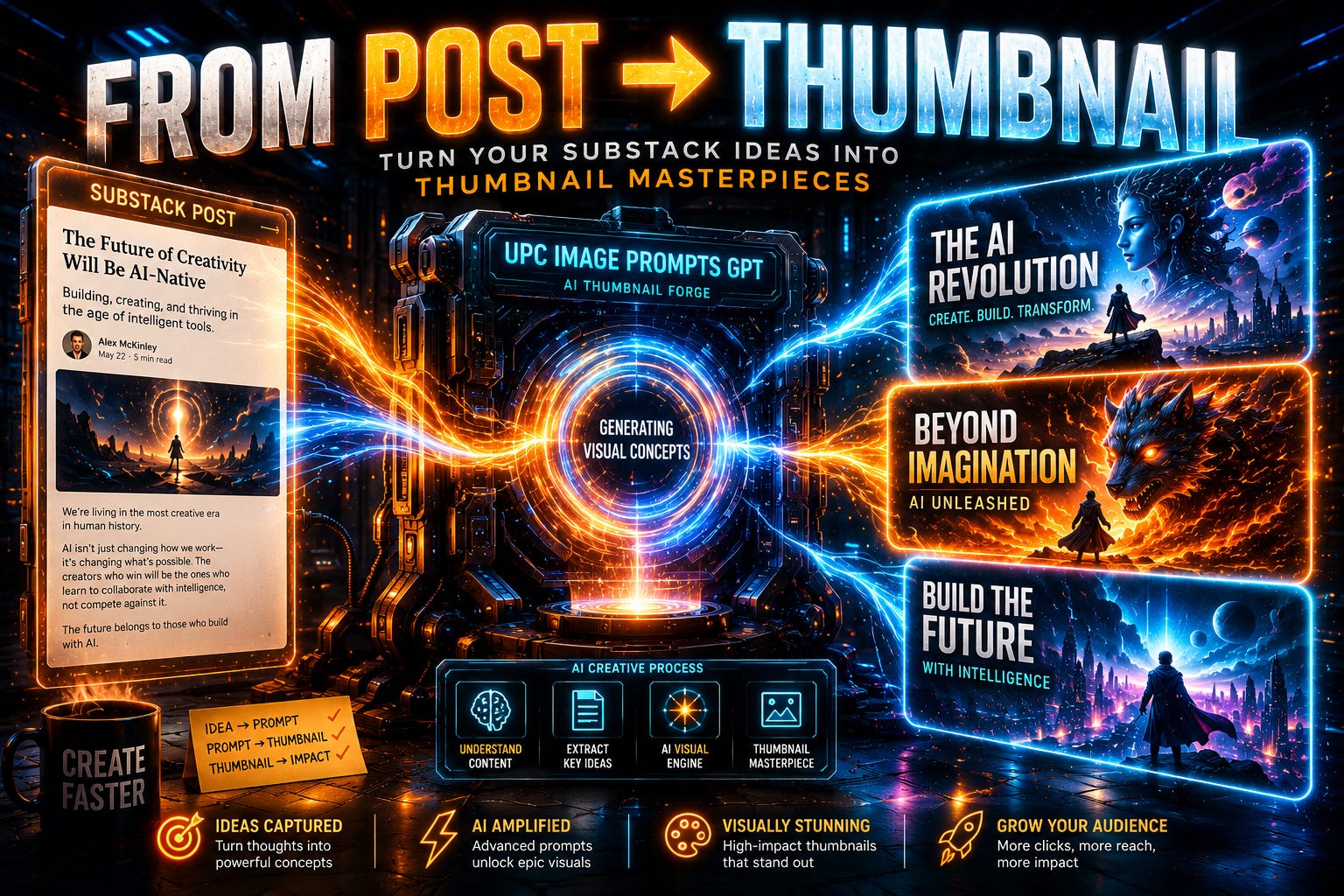
TLDR: Today I’ll show you the simple workflow I use to make Substack thumbnails with the UPC Image Prompts GPT — including the exact inputs, what to upload, and how I choose the final thumbnail. Very basic, very beginner-friendly, and honestly pretty fun. 😂
Use the Ultimate Prompt Creator (free, no signup):
Want access to the UPC Image Prompts GPT?
Before We Get Started
Alright. So this post will be incredibly simple - but very interesting. And I will be showing the results literally as I make everything myself for this post. 😂
Now before I start explaining and showing, let’s first talk about what this will be about in more detail.
If you look at the thumbnails I made so far, then you can see that they are high quality, and it only improves as the image models improve. So far I have one thumbnail that is made with GPT 2.0:
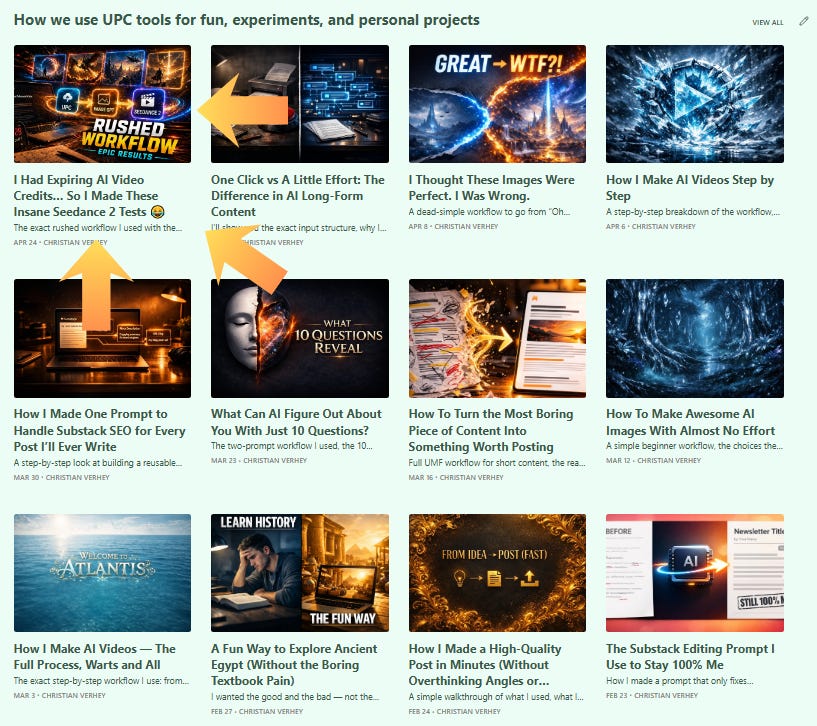
If the difference doesn’t look so big, then that is because everything is so small. If you navigate there yourself and click them open, you will see what I mean.)
So basically what I will be showing is how I make my thumbnails. There is however one small disclaimer I want to make.
I do it very basic. More advanced methods will be developed over time. But as far as I am concerned, it is good enough for now — and it is also very beginner-friendly.
You don’t need the most advanced thumbnail system to make something that looks good.
So having said this, let’s get started!
Getting Started
Alright. So you have written your post. You have your titles, descriptions, URL slugs, and whatnot. (If you have not yet automated Substack SEO titles, SEO descriptions, and URL slugs, go check out the post where I give that prompt for free.)
Now you need a thumbnail → for this we go into the UPC Image Prompts GPT and simply click ‘Get Started’.
Now you need to ask yourself:
Do you already have an idea what you want in your thumbnail?
Do you have absolutely no clue what to do for the thumbnail? 😂
If option 1, use this input:
Hey! I want to make a landscape thumbnail for my Substack post that I uploaded. I also uploaded some of my other thumbnails to give you an idea of my style. But what to make for this post… I have no idea, except for a vague idea, to be honest. 😂 It shouldn’t be a duplicate, and I don’t want depressing colors. As you can see, I always try to make a new and interesting thumbnail. This is my idea: [IDEA]. Let’s brainstorm! 🤔
If option 2, use this input:
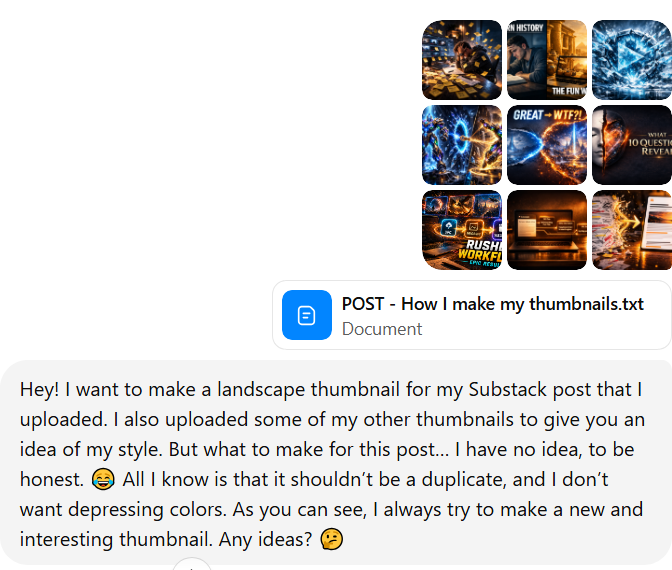
Hey! I want to make a landscape thumbnail for my Substack post that I uploaded. I also uploaded some of my other thumbnails to give you an idea of my style. But what to make for this post… I have no idea, to be honest. 😂 All I know is that it shouldn’t be a duplicate, and I don’t want depressing colors. As you can see, I always try to make a new and interesting thumbnail. Any ideas? 🤔
The important part is not copying my words perfectly. The important part is giving it your post, your style examples, and your rough direction — even if that direction is “idk man, help me.” 😂
In both cases you upload:
Other thumbnails you made previously
The post you made and want to make the thumbnail for
Now obviously, if you want to make it for other platforms, or you never made a thumbnail before, or you want to add extra criteria, you can adjust the input. This is just what I use personally right now as I made this post.
Here is how it looked for me:
Making the Thumbnails
Then once you enter that, you will receive a few questions.
What you want this thumbnail to be about, and some techniques to make the thumbnail. No worries, they are very simple. The GPT will guide you through it step by step, and you can even let it completely do it for you if that is what you desire. 👍🔥
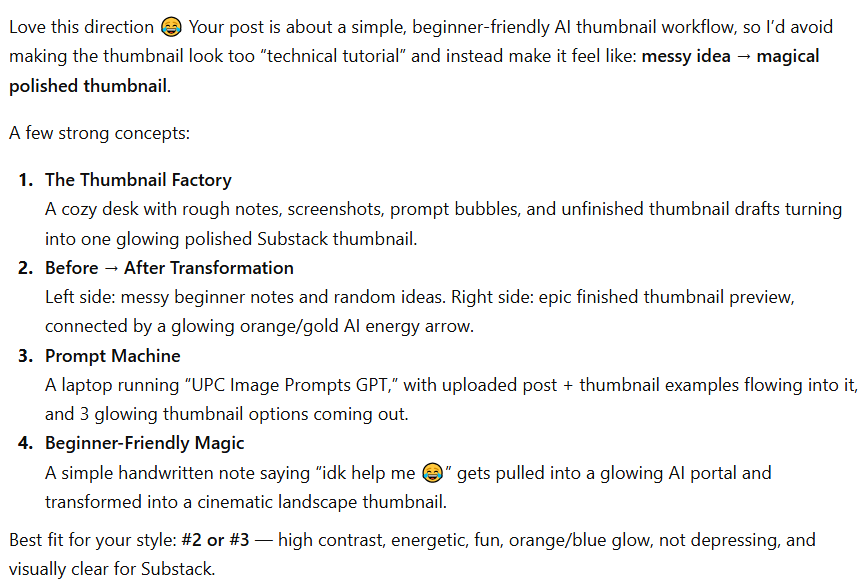
In my case, it proposed the following options — and I chose option 3:
After that, it asked me a few other questions:
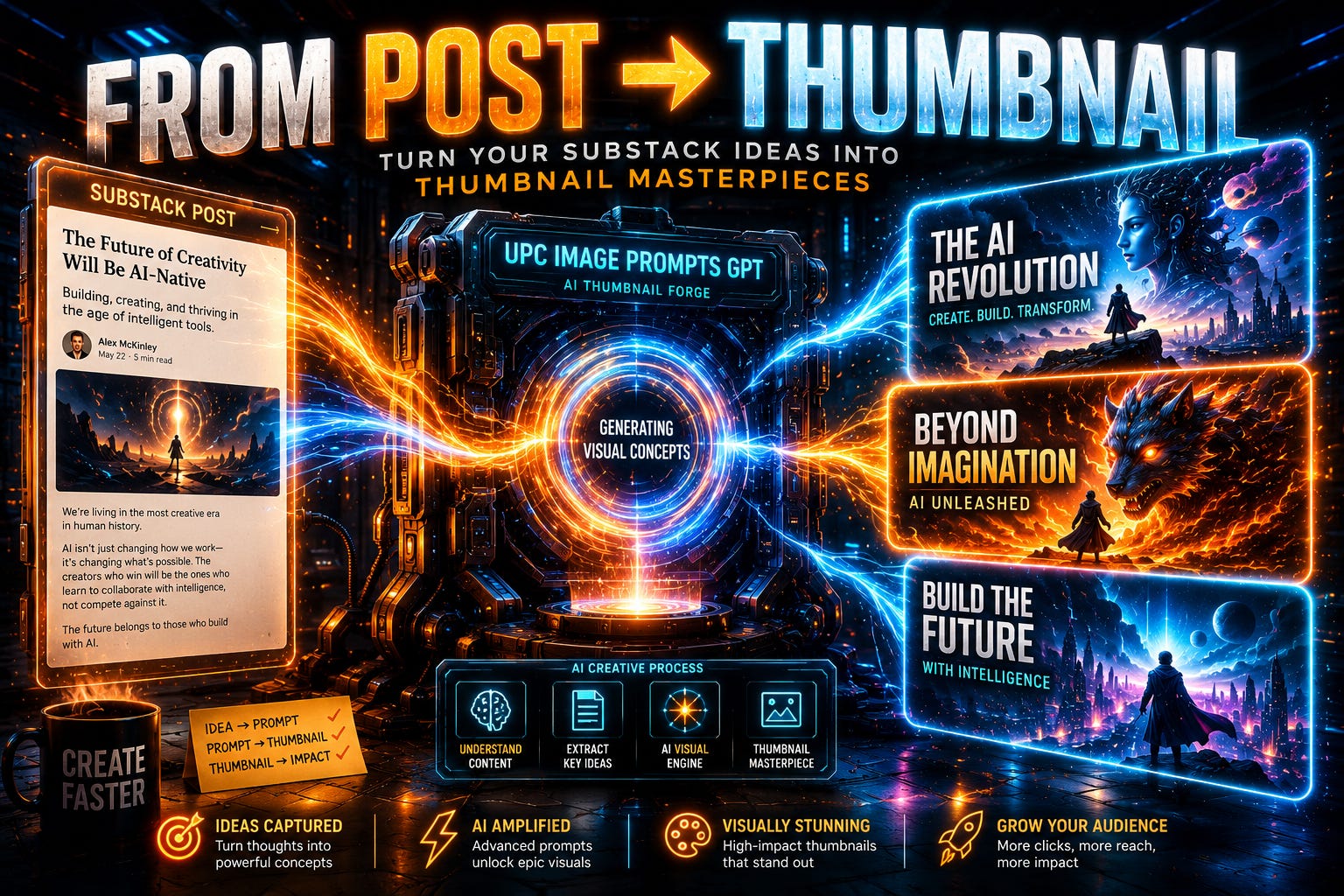
Text: FROM POST → THUMBNAIL
Mood: A mix between fast-paced & energetic and epic cinematic
Style: Abstract epic thumbnails
Time of day / lighting style: Nighttime neon glow — dark room, cinematic desk lamps, blue/orange lighting
Some exclusions
Then once we established that, I received 3 prompt variations! 🔥💪
And now you have 3 options:
Open a regular chat or image platform and make the images there
Open another chat in the UPC Image Prompts GPT to make the images there
Make the images in the same chat
My personal experience: making the images in a new tab in the same GPT will get you the best results. (Which is what I did.) But you can totally just do your own thing ofc. 👍
I’ll show you the three results for the sake of this tutorial. 👍
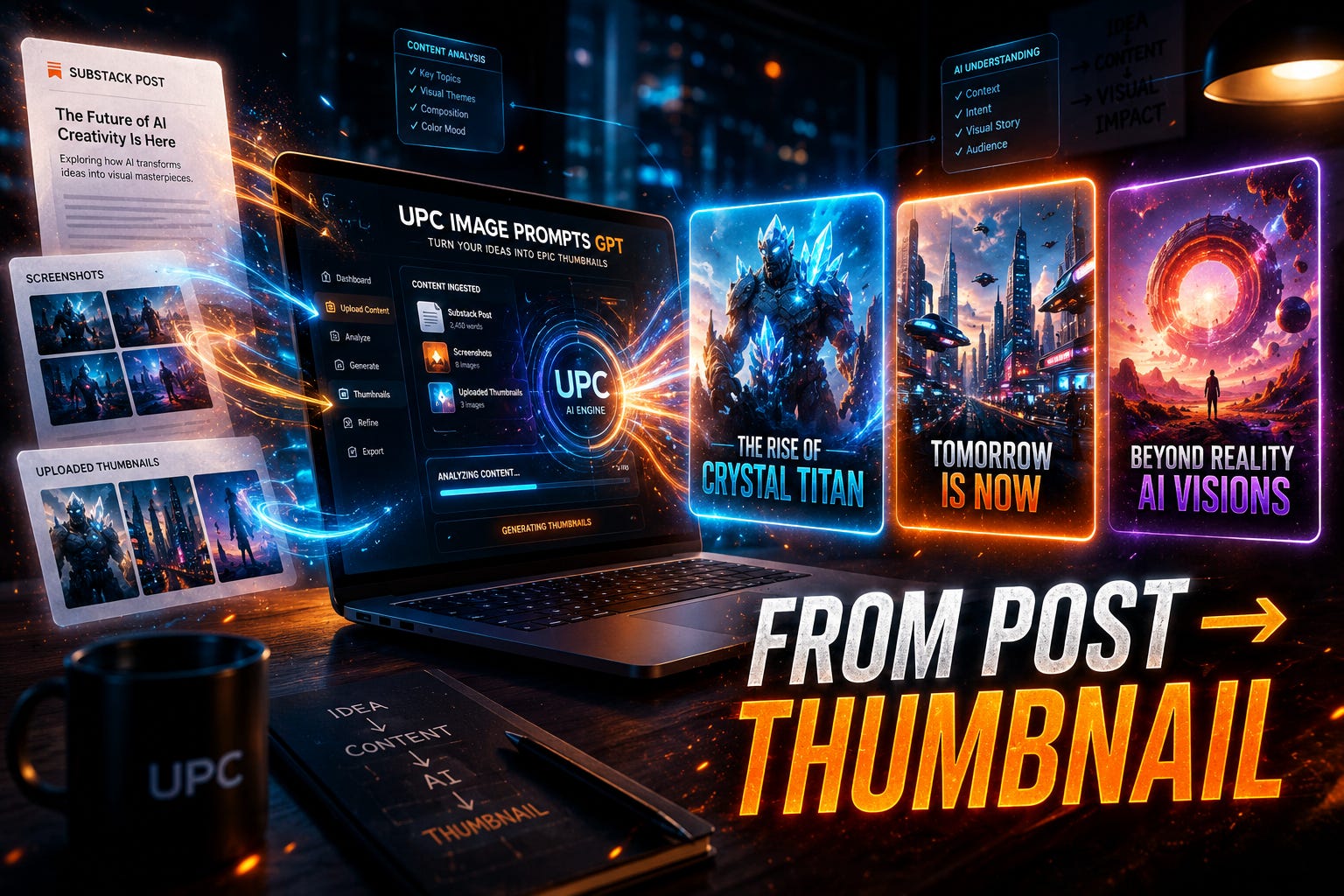
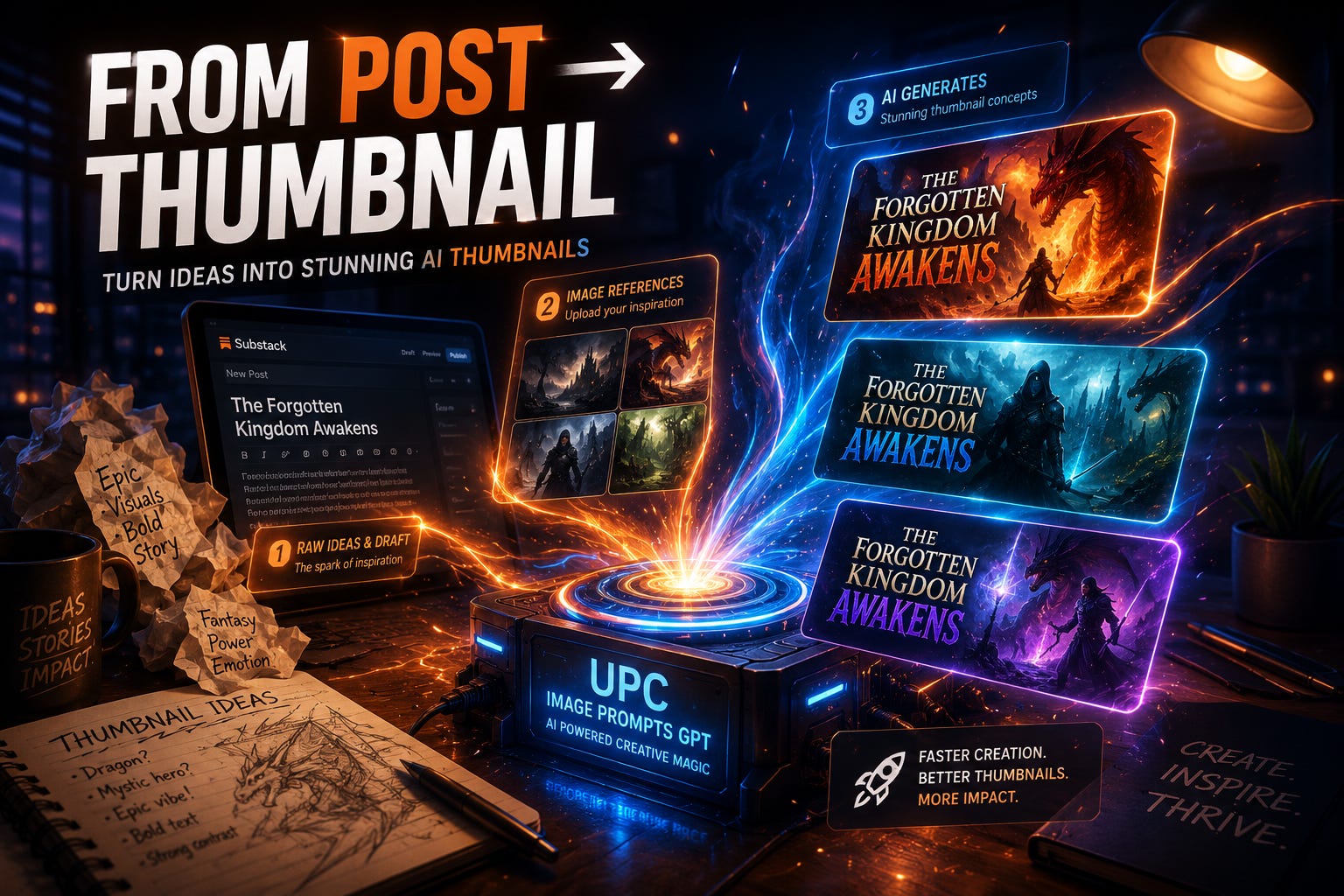
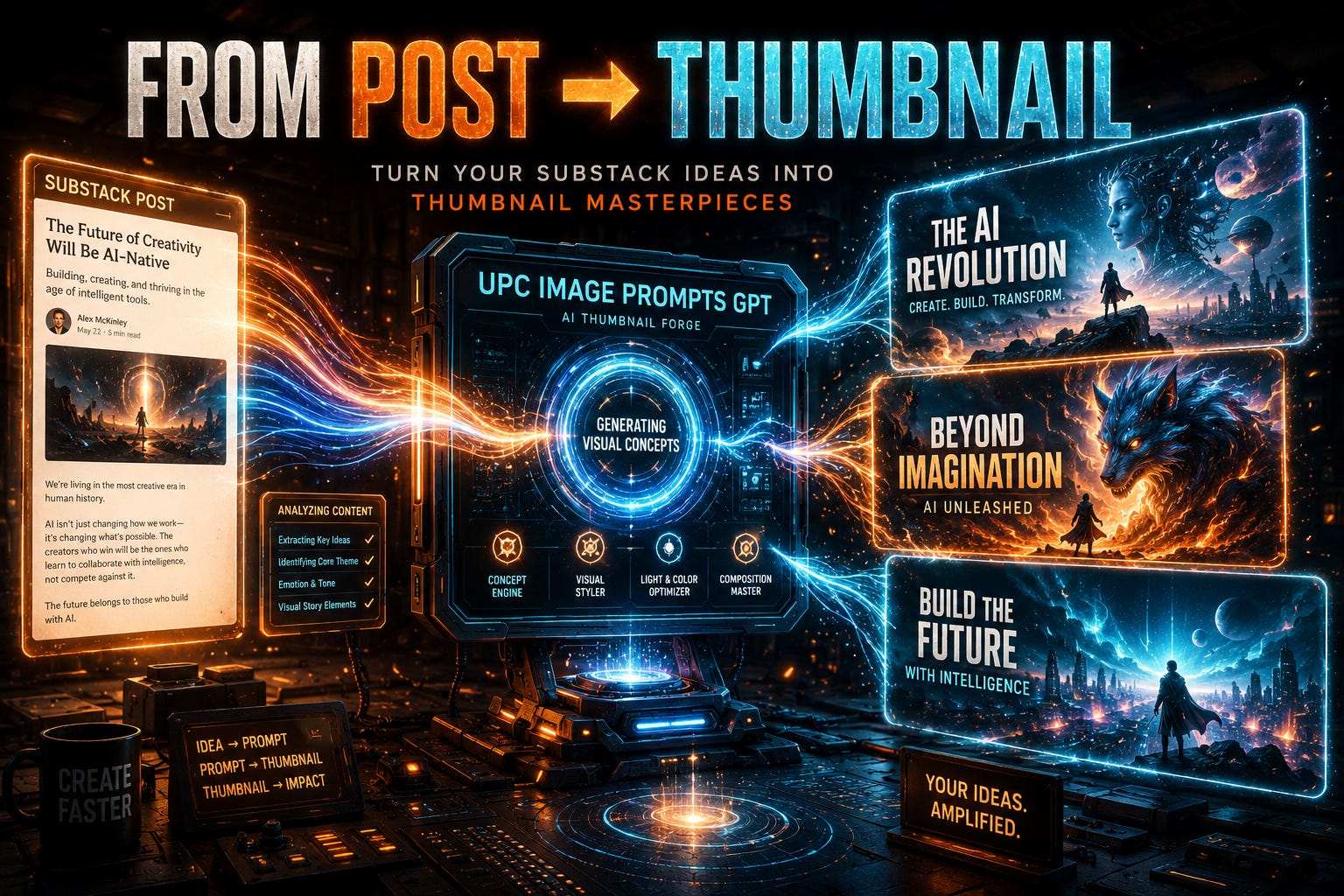
Now for those paying attention → yes. Those are NOT the final thumbnails. Because I add an extra step to it now.
If you read my other posts, you know what I am talking about. If not, you can check it out here where I explicitly show multiple examples.
But basically, I just asked it to improve it for me.
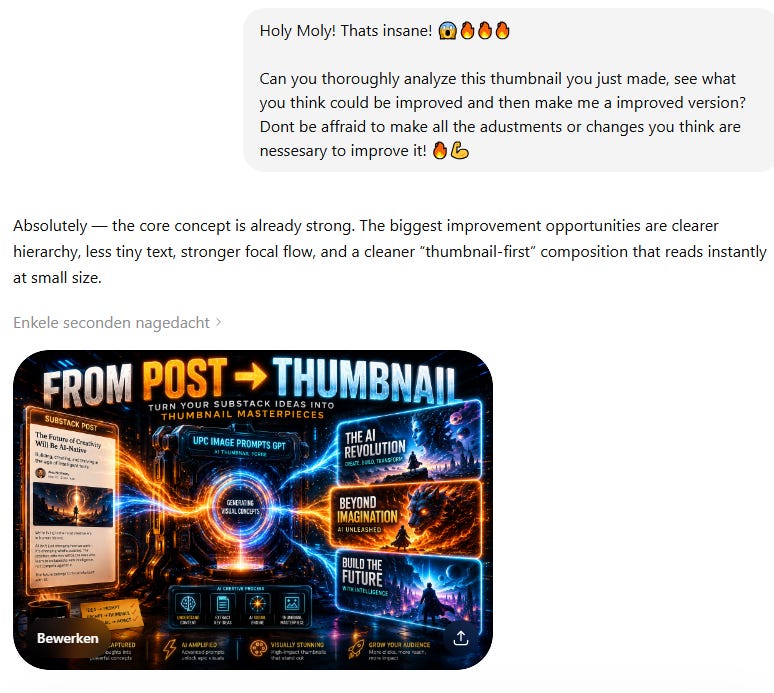
And after that, it made me a new thumbnail that suddenly makes the old one look boring! 😱😋😂
Final Note
That’s it!
That is how I make every thumbnail for myself too. And if you can no longer find the same thumbnails I screenshotted, then it is because I decided to improve them all. 😋😂
As said, it is very basic and you can take it ALOT deeper with proven methods and human psychology etc etc. I might make a post about that at some point. 🤔
But for now — I am more than happy! 🔥💪
Use the Ultimate Prompt Creator (free, no signup):
Want access to the UPC Image Prompts GPT?